You’ve just finished a fantastic call with a potential customer. They are happy with your proposal and want to take the next step of your business. And then comes the question you always hear: “Can you send over a formal quote?” Use an online quotation maker.
For a small business, agency, freelancer, solo entrepreneur, or agency owner, this moment can be a momentum killer. Struggling with outdated Word templates, managing totals in Excel, or worse, jotting down a quick estimate on paper doesn’t exactly inspire confidence.
What if you could create a clean, professional quotation in under a few minutes, for free, without any design skills? That’s the power of an online quotation maker.
This guide is your practical handbook. We’ll walk through exactly how these free tools work, why they’re a smart solution for your business, and how you can start using one today to speed up your quoting process and close deals sooner.
What Exactly Is an Online Quotation Maker?
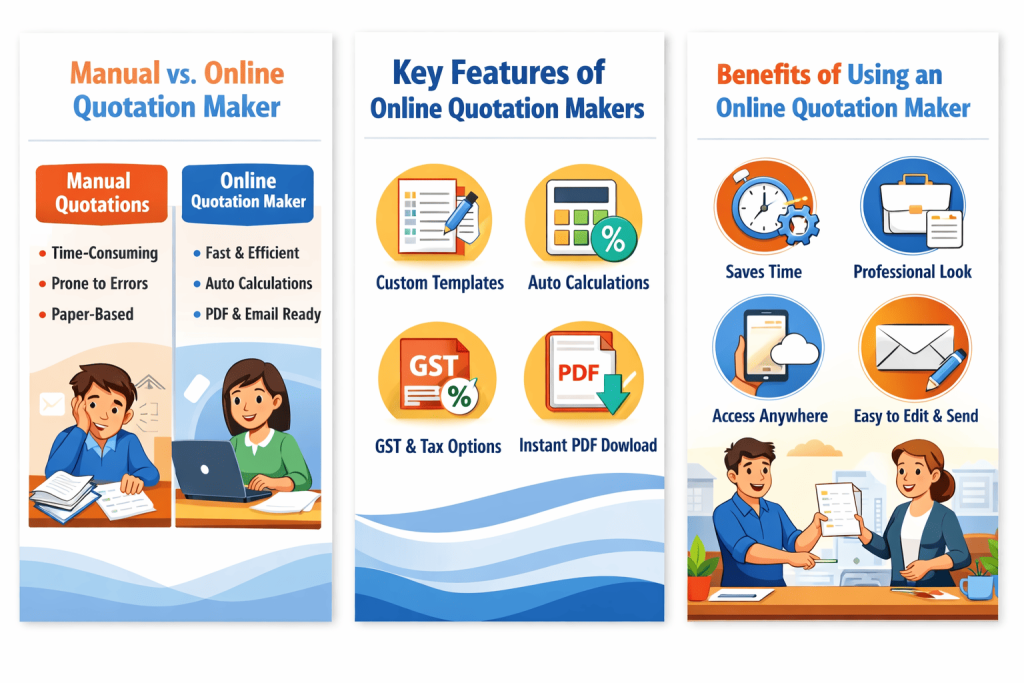
Instead of starting from a blank page, you use a pre-built online quotation template. You simply fill in your details, your client’s information, business information, a breakdown of items, services, or products, and the tool InvoiceFlexi automatically calculates totals, adds discounts and taxes, and formats everything into a clean, professional document.
Think of an online quotation maker as your digital sales assistant. It’s a web-based tool or software accessed through your browser that guides you in creating structured price quotes.
Generate a free quotation here (for a new account).
Key Features of a Professional Online Quotation Maker
Not all tools are created equal. A robust free online quotation generator PDF should offer these core features:
- Customisable Quotation Templates: Choose from designs that match your requirements—sleek and modern for tech, warm and trustworthy for services.
- Auto Calculations of Taxes: Simply enter item prices and quantities, and it calculates subtotals, discounts, and taxes automatically. No more embarrassing arithmetic errors
- Business Logo And Custom Label: Upload your logo, set your invoice number, and add your business and client info. Instantly, a generic template becomes your branded document. All labels in InvoiceFlexi are editable, so you can change the labels as needed.
- Flexible Output Formats: The ability to download as a quotation PDF or share the quotation via a direct link or send an email to the client with notice.
-
Item Library: Save your frequently used items, services or products for one-click addition to future quotes, saving you extra hours.
Avoid These 5 Common Quotation Mistakes
Even with a great tool, errors happen. Steer clear of these pitfalls:
-
- The Vague Service Line: “Design services – $1000.” What does that include? Be specific to avoid scope arguments later.
- Missing Expiry Date: A quote without an expiry date can come back to haunt you months later when your costs have risen.
- Forgetting Your Contact Info: It seems obvious, but I’ve seen it! Make sure your email and phone are on there.
- Skipping the Terms: Without clear terms, you have no agreed-upon framework for payment or project boundaries.
- Not Following Up: Sending the quote is step one. Mark your calendar to follow up in 3-5 days if you haven’t heard back.
Your Step-by-Step Guide to Creating a Free Quotation Online
Ready to make your first one? Follow this simple process. Most free tools follow a similar flow.
Step 1: Find and Choose Your Simple Quotation Tool (Invoiceflexi or Zoho)
Search for a free online quotation generator tool. Look for one that offers templates you like and offers a free trial. For this guide, let’s assume you’ve found a great online quotation maker online for free, without login and with no credit card required.
Step 2: Choose a Quotation Template That Fits Your Business
Don’t just pick the flashiest one. Choose a clean, readable online quotation template. A consultant might want a minimalist design, while a wedding planner might choose something more elegant. The tool will have a gallery to browse.
InvoiceFlexi tool has different templates.
Step 3: Input Your Client and Business Details
This is where you make it official. Add your invoice details, client name, business name, logo, contact information, and address. This section is often saved for future use, so you only do it once.
Step 4: Add Client & Invoice Information
Fill in the client’s name andThe InvoiceFlexi the quotation date and due date (optional). Crucially, add a unique quotation number (like Q-2023-003). This is vital for organisation and future reference. Click here for invoice and quotation number format.
Step 5: Apply Terms, Discounts, or Taxes (GST/VAT)
Here’s where tools differ. Do you need an online quotation maker with GST? If you’re a registered business, ensure the tool has a toggle to add GST automatically at the correct tax rate. If you’re not, use an online quotation maker without GST. You can also add notes on payment terms, payment details, and the validity of the quote.
Step 7: Review, Download, and Send Quotation to Client
Double-check all details in the quotation. Then, click Download PDF. The online quotation maker PDF output is usually the best option, as it’s universally readable and professional. Also record payment for tracking purposes.
FAQ Section
1. How to make a quotation online for free?
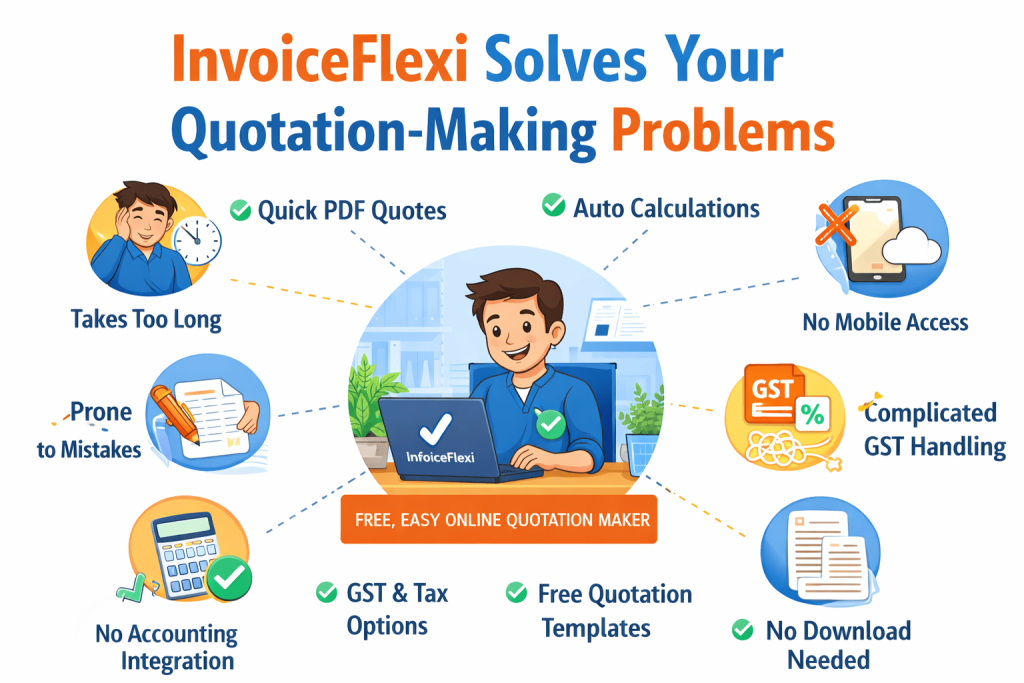
It’s a straightforward process. First, find reputable free web application-based online quotation maker software—no download is needed. Then, choose a professional template and input your quotation details, business and client information. Next, list your services or products with clear descriptions, quantities, and unit prices; the tool will calculate totals automatically. Finally, add your terms and conditions, review everything carefully, and download your quote as a PDF or send the quotation directly via a shareable email. The entire process can take less than 5 minutes.
Create Your online quotation here.
2. Which app is best for quotation making?
The “best” app truly depends on your specific needs. For solo freelancers who want speed and simplicity, a web-based online quotation maker free tool that works in your browser is often perfect. For small businesses that need to track quotes and invoices together, free plans on platforms like Zoho Invoice or InvoiceFlexi are excellent. If you’re always on your phone, look for a highly rated mobile app with a free quotation maker download option. My advice? Try 2-3 different free tools for a week. The one that feels most intuitive and fits your workflow is the best one for you.
3. What is the AI tool to make quotations?
While many standard online quotation generators use templates and forms, new AI-powered tools are emerging. These AI tools can help you draft compelling service descriptions, generate item names based on a brief project outline, or even suggest pricing based on industry standards you input. They act as a smart assistant within the quotation-making process. However, the core creation—entering rates, client info, and final calculations—still relies on a structured platform. Think of AI as a helpful co-pilot that speeds up the writing part, not a fully autonomous pilot for your entire financial documentation.